Nothing sours a person on the smart home faster than a light that works most of the time. A dumb switch never asks you to stand in the kitchen waving your phone at it. So when the bulbs stop answering, the camera goes dark for the third time this week, and the doorbell wants a firmware update before it will admit someone is standing on the porch, I understand why people give up and go back to hardware from 1987. We were promised seamless. We got a router having a quiet nervous breakdown.
Here is the part nobody tells you at checkout. When smart devices keep dropping offline, the problem is almost never the gadget. It is the network underneath it, and usually one or two specific settings that ship turned on from the factory. I have chased these gremlins through my own old house, plaster walls and all, and the fixes below are in the order I would actually try them.
It’s Not You. It’s Your Router’s Party Trick.
First, the single most common cause of the whole mess, and the one with a five-minute fix.
Almost every smart home gadget, the plugs, the bulbs, the cameras, the sensors, talks on the 2.4 GHz Wi-Fi band and only the 2.4 GHz band. Manufacturers pick it because it is cheap, it sips power, and it punches through walls better than the faster bands. Even brand-new Matter devices ship this way. Your phone and laptop, meanwhile, prefer the faster 5 or 6 GHz bands.
Modern routers try to be helpful about this with a feature called band steering. One network name, and the router quietly decides which band each device belongs on. For phones and laptops, great. For a smart plug that physically cannot speak 5 GHz, it is a disaster. The router keeps nudging the plug toward a band it cannot join, the plug falls off the network, rejoins, gets nudged again, and you experience this as “the stupid plug keeps disconnecting.” The plug is innocent. The router is playing matchmaker with a device that only speaks one language.
The fix is to split your bands. In your router settings, give the 2.4 GHz band its own network name, something like YourWiFi-IoT, and join every smart device to that network and only that one. Your phones and laptops stay on the fast band. Everybody stops fighting. I have watched this one change resurrect entire smart homes, and it costs nothing.
Your House Is a Radio Battlefield
If splitting the bands did not fully cure it, the next suspect is congestion, because the 2.4 GHz band is the most crowded strip of airspace in your home.
Count your Wi-Fi devices sometime. A typical smart home now runs a couple dozen, and every one of them is elbowing for room on the same band your neighbor’s network uses, and their neighbor’s, plus the microwave, the baby monitor, and that Bluetooth speaker from 2018. The 2.4 GHz band only has three channels that do not overlap each other, channels 1, 6, and 11. If your router auto-picked channel 3, it is straddling two lanes and getting clipped by traffic in both.
Log into the router and set the 2.4 GHz channel manually to 1, 6, or 11, whichever a Wi-Fi analyzer app shows is quietest on your street. While you are in there, two more quick wins. Check the DHCP address pool, because some routers ship configured to hand out fifty addresses and a serious smart home can blow past that, at which point new devices simply cannot get a seat. And if your smart gear is ancient enough, check the security mode, since a router set to WPA3-only will lock out older devices that only speak WPA2. The mixed WPA2/WPA3 setting exists for exactly this reason.
The Rest of the Checklist, in the Order I’d Try It
Beyond the big two, here is the sequence that solves most of what remains. Move the router out of the basement corner and off the metal shelf, high and central beats hidden and convenient, and in an older house like mine, plaster-and-lath walls eat 2.4 GHz signal like a snack. Reserve addresses for your important devices, cameras and hubs especially, in the router’s DHCP settings, so they stop occasionally waking up with a new address their app cannot find. Update the router firmware, which fixes more mystery disconnects than anyone wants to admit. And give the router a full reboot before you spend money on anything, not because rebooting is a cure, but because a router that has been up for eight months is running on vibes and memory leaks.
One myth worth killing while we are here. Scheduled nightly reboots do not fix a network, they just reset the clock on whatever is actually wrong. If a reboot reliably buys you a good week, that is a clue pointing at the router itself, which brings us to hardware.
When It’s Time for Better Hardware
If you have a big house, a device count headed north of thirty, or a router your internet provider handed you in a previous decade, tuning settings will only get you so far.
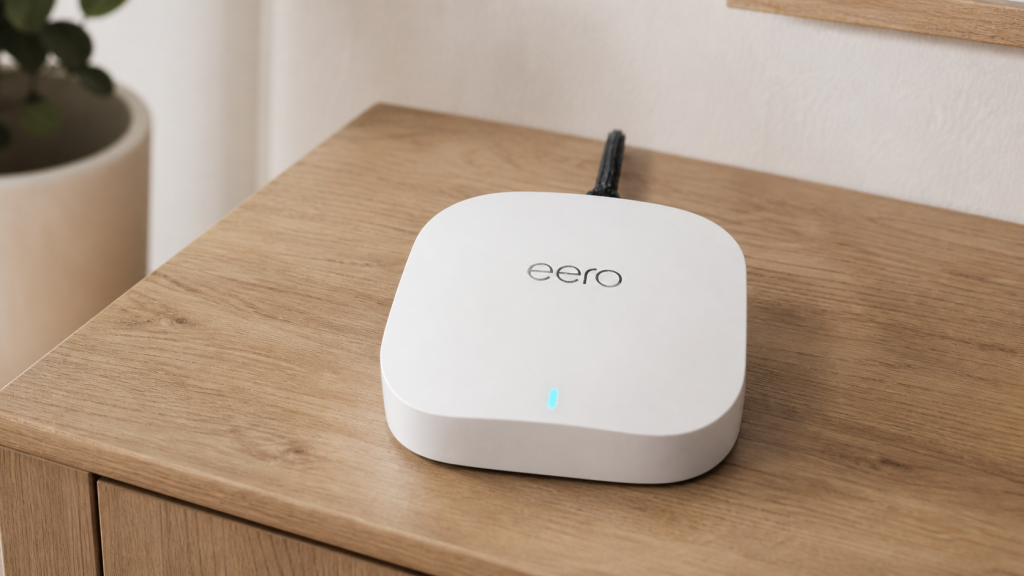
The answer for most real houses is a mesh system, several units that blanket the house in one network instead of one box screaming from the basement. I run mesh in my own house and it is the difference between the far bedroom being a dead zone and never thinking about it. Two things actually matter when you pick one. Get units with a dedicated wireless backhaul or, better, connect them with ethernet if the wiring exists, because mesh points that share the same band as your devices just add another voice to the shouting. And check the spec sheet for how many devices it officially supports, because that number is what smart homes actually exhaust, long before speed.
On Wi-Fi 7, the honest take. Your smart devices cannot use it, since they are all still on 2.4 GHz, and nothing about Matter requires it. What a newer router buys you is a traffic cop with more patience, better handling of a crowded network so your forty little gadgets stop degrading everything else. Worth it when you are due for an upgrade anyway. Not worth it as a cure for a misconfigured network, because a Wi-Fi 7 router with band steering strangling your plugs has the same problem at a higher price.
The Endgame Is Getting Gadgets Off Wi-Fi Entirely
Here is the bigger truth the router aisle will not tell you. The most reliable smart homes put the fewest devices on Wi-Fi.
My Lutron lights have run for years without a single dropout, and it is not luck, it is that they never touch Wi-Fi at all. They use their own dedicated radio, and protocols like Zigbee and Z-Wave work the same way, a separate low-power network where every plugged-in device strengthens the mesh instead of crowding your router. Fifty sensors on Zigbee cost your Wi-Fi nothing.
Thread is the newer take on the same idea and the one Matter is betting on. When it works, it is exactly the future we were promised, self-healing, fast, and invisible. The honest caveat is that in 2026 it is still a little tribal. Thread border routers from different companies do not always join the same network, so an Apple hub and a Google hub can end up running rival Thread fiefdoms in the same living room. It is getting better with each spec update, and buying Thread gear today is still the right long-term move. Just know the seams show occasionally, and a house that mixes Zigbee, Thread, and a lightly-loaded Wi-Fi IoT network is the sturdiest setup you can build right now. If you want gadgets that skip the router drama entirely, there is a whole category of them.
When to Wave the White Flag
If you have split the bands, fixed the channel, updated the firmware, gone mesh, and things still drop, the remaining suspects get exotic, sources of interference you cannot see, wiring problems, a defective unit lying about its signal. That is the point where paying a network person for two hours costs less than the gear you will otherwise replace on a hunch. No shame in it. The goal was never to earn a networking certificate. The goal is a house where the lights just come on, and you get to think about it never. For the ground-up version of that build, start with the smart home networking guide.
Frequently Asked Questions:
A: Smart devices are more vulnerable to connection issues because they’re designed to be “set it and forget it” rather than actively managing their WiFi connections like phones and laptops. The most common causes are weak signal strength in device locations, network congestion from too many devices, and the fact that most smart devices only use the 2.4GHz band, which is more prone to interference from microwaves, baby monitors, and neighboring networks.
A: Start by identifying the scope: Is only one device affected, or multiple devices? Are affected devices all in the same area of your home? Did problems start after a recent change (new device, router update, etc.)? If only one device has issues, it’s likely device-specific. If multiple devices in the same area have problems, it’s probably a coverage issue. If devices throughout your home are affected, you’re looking at a router or internet service problem.
A: Perform a proper power cycle reset of your network equipment. Unplug your modem, then your router, wait 30 seconds, plug in the modem and wait 1-2 minutes for it to fully boot, then plug in your router and wait for it to boot completely. This simple step resolves many connectivity issues by clearing temporary glitches and refreshing network connections.
A: Use a WiFi analyzer app on your smartphone to check signal strength throughout your home. Look for readings in dBm: -30 to -50 dBm is excellent, -50 to -60 dBm is good, -60 to -70 dBm is fair (may cause issues), and below -70 dBm is poor and likely to cause connection problems. Areas with poor signal are where smart devices will struggle to maintain connections.
A: Yes, this often helps. Many routers broadcast both bands using the same network name, which can confuse smart devices that need to stay on 2.4GHz. Create separate network names (like “YourNetwork_2.4” and “YourNetwork_5”) so you can ensure smart devices connect to the appropriate 2.4GHz band, which offers better range for smart home devices.
A: Consider a mesh system if you have dead zones throughout your home, your router is over 3-4 years old, you frequently need to restart your router, you have 20+ smart devices experiencing reliability issues, or you notice that adding new devices causes existing ones to become unreliable. Mesh systems provide consistent coverage and can handle 100+ connected devices.
Related Guides
Still fighting the network? These go deeper:
- Smart Home Networking: Ensuring Reliable Connectivity, the fundamentals of building a solid network
- Zigbee vs Z-Wave vs Thread, the alternatives that take the load off your Wi-Fi
- Smart Home Devices That Work Without Wi-Fi, less congestion by design
- Thread Border Routers: What You Actually Need to Know, the protocol Matter is betting on
- The Matter Compatibility Guide, one language for the whole house