Working from home has taught us a lot. Like how easily a kitchen becomes a distraction. Or how a “home office” often starts as a folding table and a dream. Maybe your fan stays on all day. Maybe your video calls make you look like you’re broadcasting from a dungeon.
That’s where smart home office automation comes in, not to turn your workspace into something out of Star Trek, but to make it quietly smarter, more comfortable, and way less annoying.
After years of remote work (and way too many calls where I looked like I was telling ghost stories), I’ve dialed in what actually makes a difference. The key? Automation that helps without turning you into an IT manager for your own desk.
Why You Need Smart Office Upgrades
Your workspace isn’t just a desk and a chair anymore. It’s your daily command center, and it should adapt to how you actually work. Maybe your morning needs bright, energizing light. Maybe you want your office to warm up before you step inside. Or maybe you’re just tired of forgetting to turn off the desk lamp every night.
Smart office automation can help you look better on video calls, save on energy bills, minimize distractions, and create real work-life boundaries. The beauty is that it works quietly in the background, making small adjustments that lead to big improvements.
Start Simple: Smart Plugs
If you’re new to smart automation, smart plugs are your easiest win. Plug one into the wall, plug your device into it, and suddenly you’re in control. I use them for my desk lamp, phone charger, and coffee warmer. Everything powers on at 7 AM. Everything shuts down at 6 PM. No more wondering if you left the space heater running.
Some solid options include the TP-Link Kasa Matter Smart Plugs, which are reliable and Matter-compatible, working across Alexa, Google, and HomeKit. The Lutron Caseta Smart Plugs have a premium feel and integrate with a broader lighting ecosystem (though they’re not yet Matter-compatible). For a no-frills approach, the Amazon Smart Plug is affordable and straightforward.
If you want to get fancy, the Eve Energy offers Thread connectivity and detailed power monitoring, perfect for HomeKit users who want to track exactly how much energy their office setup consumes. The Leviton Decora Smart Wi-Fi Plug is another solid mid-range option that’ll eventually support Matter via firmware update.
For outdoor offices or garden studios, weatherproof options like the TP-Link Kasa Outdoor Smart Plug can handle string lights, fans, or space heaters in covered areas.


Lighting: Make or Break for Video Calls
Bad lighting makes good people look sketchy. Smart lighting helps you look alert, professional, and well-lit — even if you’re still in sweatpants or not wearing any at all.
I use a Philips Hue Go for adjustable desk lighting. It’s portable, battery-powered, and easy to position. Bonus: it syncs with my Hue system. Look for lamps that let you adjust color temperature — cool for mornings, warm for afternoons. It helps with focus and your circadian rhythm.
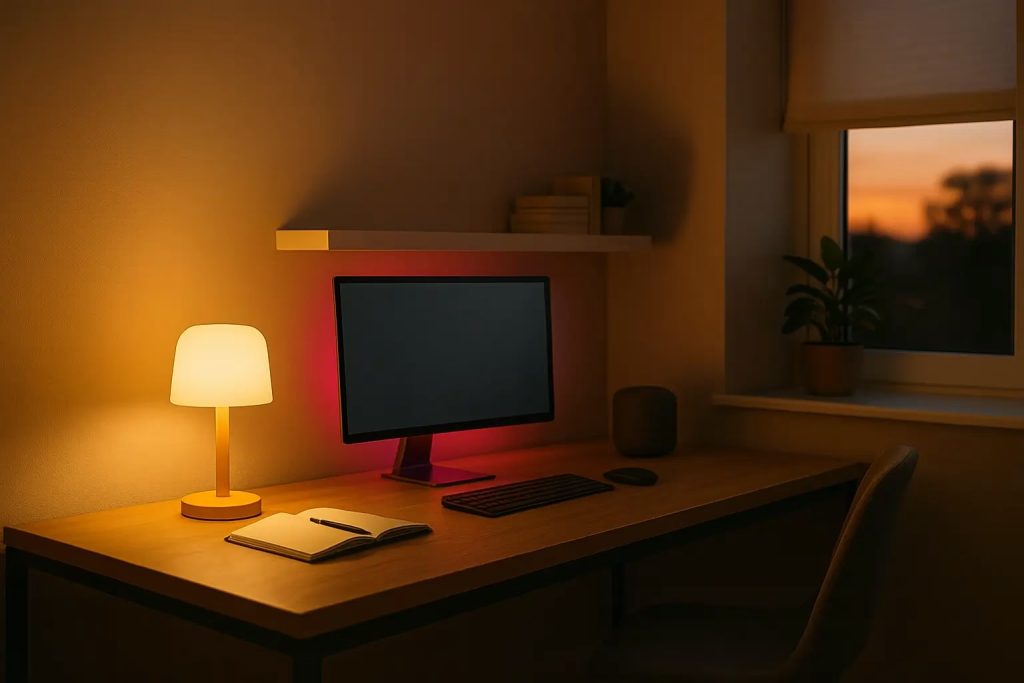
A Hue Lightstrip behind your monitor reduces eye strain by balancing the screen’s brightness with your room lighting, which makes long work sessions easier on your eyes.
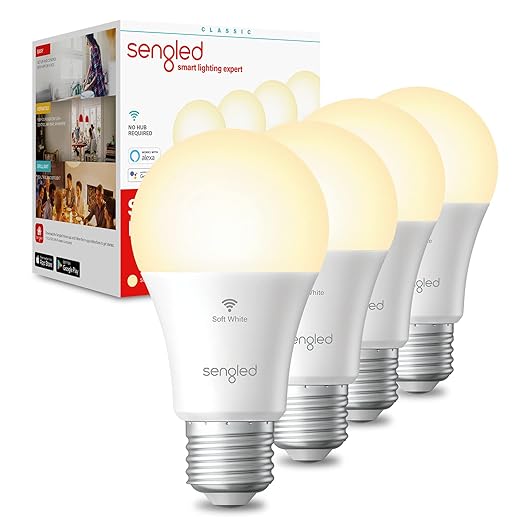
Overhead lighting also matters. Philips Hue White Ambiance bulbs allow you to shift from energizing daylight tones to warmer evening light, and you can schedule them so you don’t even think about it. Budget-friendly alternatives like Sengled Smart Bulbs and LIFX Clean offer solid performance and Matter support without the higher price tag.
The Nanoleaf Essentials line splits the difference between budget and premium, offering solid color options and Thread connectivity at a reasonable price. For recessed lighting, Cree Connected bulbs integrate well with most systems and offer excellent light quality. If you’re already invested in the Lutron ecosystem, their Caseta dimmers with regular LED bulbs often provide better dimming performance than smart bulbs, especially with cheaper options that can flicker or buzz.
The key difference? Hue bulbs offer the most features and best app experience, but you’ll pay for it. Budget options work fine for basic automation but might lack advanced features like circadian lighting or smooth color transitions.




Smart Shades: Control Natural Light
Natural light is awesome, until it blows out your screen or makes you look like a witness protection guest on Zoom. Smart shades let you control sunlight like a pro.
I use Lutron Serena Shades, which work great with our Caseta setup and allow for time-based or sensor-based automation. IKEA Fyrtur blinds are a more affordable, Matter-ready option and Eve MotionBlinds are a great retrofit pick that work well with HomeKit.
For budget-conscious setups, SwitchBot Curtain can motorize existing blinds or curtains without replacing anything. The Soma Smart Shades offer a middle ground with solar charging and reliable performance. If you have larger windows, Hunter Douglas (yes, the fan company) PowerView shades are premium but offer exceptional build quality and precise control.
The choice often comes down to whether you want built-in motors (more reliable, more expensive) or retrofit solutions (cheaper, potentially less smooth). Built-in options like Lutron or Hunter Douglas move quietly and precisely. Retrofit solutions like SwitchBot work well but might be noisier and less streamlined.
Setting “Work Mode” scenes can help manage glare during video calls or let in natural light during breaks, keeping your space comfortable and functional throughout the day.
Occupancy Sensors: Set It and Forget It
Motion and presence sensors can elevate your setup significantly. When you walk into your office, lights turn on, devices wake up, and the temperature adjusts. When you leave, everything powers down.
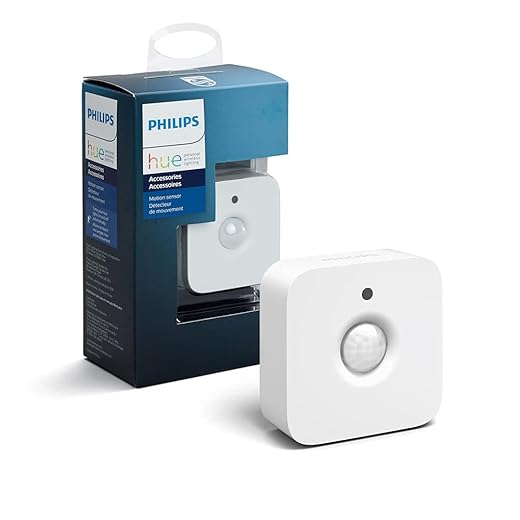
The Philips Hue Motion Sensor is easy to set up and integrates well with lighting scenes. The Eve Motion Sensor supports Matter and Thread, making it a good fit for HomeKit users. For even more nuanced automation, the Aqara FP2 Presence Sensor detects presence, not just motion.
That said, sensors aren’t perfect. Pets, shadows, or even a breeze can throw them off, so always make sure you have a manual override option.


Climate Control: Comfort = Focus
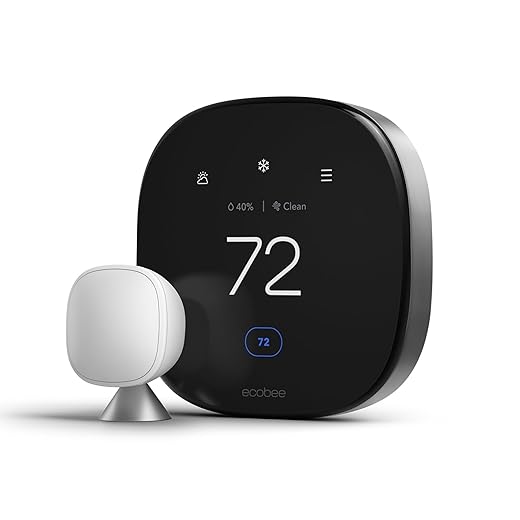
Your thermostat might be great for the whole house, but your office probably needs its own rules. The Ecobee SmartThermostat Premium comes with room sensors, supports Matter, and allows for highly customized automation. If you’re on a tighter budget, the Amazon Smart Thermostat delivers core smart features at a lower price point. For harder-to-control spaces like basements, converted garages, or in my case, attics, the Dyson Hot+Cool is a premium, all-in-one solution that integrates nicely with Alexa scenes.

Don’t Overdo It
I’ve seen people turn their home offices into sci-fi command centers with 17 apps and a backup generator. Don’t be that person. Start small. Try a couple of smart plugs, a smart bulb or lamp, and maybe one motion sensor. See what actually helps you. The goal is to simplify your routine, not complicate it.
Here’s the thing about smart home tech: the moment you have to think about it, it’s failed. Good automation should disappear into the background of your day. You shouldn’t need to remember to activate “morning mode” or troubleshoot why your lights aren’t responding during an important call.
I’ve made this mistake. My first attempt at office automation involved three different apps, five brands of devices, and a complex web of “if this, then that” rules that broke every time someone updated their software. It took longer to manage my smart office than it would have to just flip some switches manually.
The sweet spot is having just enough automation to handle the stuff you always forget or find annoying. Your desk lamp turns on when you sit down. Your overhead lights gradually dim as evening approaches. Your office warms up five minutes before your first meeting. That’s it. No rainbow light shows, no voice announcements, no complexity for complexity’s sake.
I’m obsessed with systems that ‘just work.’ If you find yourself becoming the IT department for your own desk, you’ve gone too far. The best smart home setups are the ones guests don’t even notice until they realize everything somehow works perfectly without any effort.
Making Everything Work Together
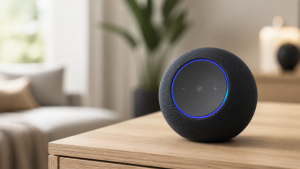
This is where Matter shines. No more “will this work with that?” headaches. Matter devices talk to each other across brands and platforms. Use your Apple TV, HomePod, or Echo as a Thread Border Router to connect everything. I use HomeKit as my base, and everything from Hue to Caseta works smoothly.
Voice control isn’t just a gimmick either. Saying “Hey Siri, start work mode” and watching your office spring to life is oddly satisfying.
But here’s where integration gets interesting: your office automation can connect to your broader smart home system. When you leave for vacation, your office can automatically power down completely. When you’re working late, your home’s evening routines can delay until your office lights signal you’re done.
If you’re using Google Home, the strength is in natural language processing and integration with Google services. “Hey Google, dim the office lights for my 2 PM video call” just works. Alexa excels at routines and has the broadest device compatibility. HomeKit offers the most privacy and security, plus seamless integration if you’re already in Apple’s ecosystem.
For the truly ambitious, platforms like Home Assistant or Hubitat let you create incredibly sophisticated automation rules. But honestly, most people are better off sticking with the basics. The major platforms handle 95% of what most home offices need without requiring a computer science degree.
The key is picking one primary platform and sticking with it. You can always add devices from other ecosystems later, but having a consistent base makes troubleshooting much easier when things go sideways.


Budget-Friendly Starter Setup
You don’t need to go all in on day one. A realistic, functional starting kit includes smart plugs for your desk gear, two smart bulbs (for your overhead and desk lamp), a Hue Lightstrip for monitor backlighting, and a basic motion sensor. That gives you automated lighting, power control, and the ability to set up scenes for different parts of your workday.
Brands like Sengled offer good entry-level gear at reasonable prices, making it easy to dip your toes into automation without draining your wallet.
Here’s a realistic budget breakdown: Sengled bulbs start around $10 and offer solid tunable white lighting. A basic Aqara motion sensor costs about $20 and integrates well with most platforms.
Compare that to premium options: Lutron Caseta smart plugs cost $40+ each, and Philips Hue bulbs run $25-50 depending on features. The premium options often offer better build quality, more features, and smoother integration, but the budget alternatives will get you 80% of the functionality for 30% of the cost.
The middle ground might be the sweet spot for most people. Companies like TP-Link Kasa and Leviton offer reliable products with good app experiences at reasonable prices. They’re not as cheap as Wyze, but they’re more reliable than rock-bottom options and less expensive than premium brands.
Connecting to Your Whole Home
One of the biggest advantages of a smart office setup is how it can integrate with your broader home automation. Your office doesn’t exist in isolation — it’s part of your daily routine.
When your morning alarm goes off, your office can start warming up and your desk lamp can gradually brighten, ready for that early meeting. When you finish work and your office sensors detect you’ve left, your home’s evening routines can kick in. Dinner time? Your office lights can flash briefly to let you know without interrupting your flow.
If you’re already using Lutron Caseta throughout your home like I am, adding office integration is seamless. The same wall switches, dimmers, and smart plugs work together whether they’re in your kitchen or your workspace. Philips Hue bridges can control lights throughout your entire home, creating cohesive lighting scenes that transition from space to space.
The magic happens when systems anticipate your needs. Your Ecobee thermostat can recognize when you’re in your office and adjust the whole-home temperature accordingly. Your Ring security system can disarm automatically when you’re working late, then re-arm when your office finally goes dark.
But here’s the key: start with your office, get it working smoothly, then expand. Don’t try to automate your entire home at once. Get your workspace dialed in first, then gradually connect it to other systems as you see opportunities.
When Smart Gets Stupid
Sometimes your automation has a meltdown. Lights don’t respond. Sensors ghost you. Or a “scene” activates the espresso machine instead of your lamp.
Here’s how to stay sane: keep physical switches accessible, stick with reliable brands, and build in manual controls as backups.
Matter helps here too. It standardizes how devices communicate, which makes troubleshooting easier and functionality more reliable.
What Actually Changes
So what changed for me? My workspace feels ready when I walk in. I don’t waste energy adjusting lights or fiddling with plugs. My video calls look way more professional. And when the lights dim and the gear powers down at the end of the day, I actually feel done.
It’s not perfect. But it removes enough friction that I can focus on the work that matters instead of managing my environment.
Your Smart Office Evolution
Don’t aim for perfection. Aim for better than yesterday. Start with what bugs you most. Is it the lighting? The temperature? Forgetting to turn things off? Solve that one problem first. Then another. Let your setup evolve as your needs change.
When smart tech just works, it’s like magic.
Final Thoughts
You don’t need a big budget or an engineering degree. You just need to think through your day and pick the friction points that are easy wins. Automate just enough to make work-from-home feel good. Your future self (well-lit and not sweating in a Zoom call) will thank you.
And if you catch yourself building a flowchart just to turn on your desk lamp? Pull the plug. Literally.
Frequently Asked Questions:
A: You can start with a solid foundation for under $100. A couple of smart plugs ($15-25 each), one smart bulb ($10-25), and a basic motion sensor ($20-30) will give you automated lighting and power control. That’s enough to see if smart automation actually helps your workflow before you invest in fancier stuff like smart shades or climate control.
A: Mix away! Matter compatibility has made this much easier. The key is picking one main platform (HomeKit, Alexa, or Google) as your control center, then adding compatible devices from different brands. I use HomeKit with devices from Philips, Lutron, TP-Link, and others without any drama.
A: Most modern smart devices are surprisingly simple. Smart plugs literally plug in and connect through an app. Smart bulbs screw in like regular bulbs, then you follow the app setup. If you can download an app and follow instructions, you can handle this. Start with one device, get comfortable, then add more.
A: Matter is basically a universal translator for smart home devices. It means a smart bulb from one company can talk to a smart speaker from another company without you needing to become a systems engineer. Look for “Matter compatible” when shopping for new devices, but don’t stress about replacing existing gear that works fine.
A: Good brands like Philips Hue, Lutron, and TP-Link Kasa are pretty reliable. I’ve had some devices running for years without issues. Occasionally you’ll need to update firmware through the app, but it’s usually automatic. The main thing is avoiding cheap knock-offs that might crap out after a few months.
A: Stick with reputable brands that offer regular security updates. Avoid companies with known privacy issues (looking at you, Wyze). Most office devices like smart plugs and lights aren’t privacy risks the way cameras are. Use strong WiFi passwords, keep firmware updated, and you’ll be fine.
A: Absolutely! Smart plugs, smart bulbs, and portable devices like the Philips Hue Go don’t require any permanent installation. You can take everything with you when you move. Just avoid hardwired stuff like smart switches or built-in smart shades unless your landlord is cool with modifications. Check out our Renters Guide for more info.