My kids got their first phones earlier than I planned, which is apparently the new national pastime. The average American kid now gets a smartphone at 11.6 years old, even though most parents will tell you, in the same breath, that the right age is more like 13. By 14, more than 85% of them have one. And once that glowing rectangle is in their hands, the numbers get loud: tweens average about 5.5 hours of screen entertainment a day, and teenagers clock closer to 8.5 hours, not counting school.
You are not going to manage that by hovering. Early on, my wife and I tried, and it lasted about a week. You cannot personally referee every screen in the house. The week I figured we had it locked down, our girls found their way onto social media without their phones at all, through the chat on a Nintendo Switch. A Switch. Never in a hundred years would I have guessed that one. The thing that actually works is not vigilance. It is a system, a few layers of defense that quietly do their job whether you are paying attention or not.
So this is the guide I wish someone had handed me a few years and one Switch incident ago. It is part how-to and part honest tour of what is actually out there in 2026, and every bit of it is running in my own house, not theory I read somewhere. I will tell you what is worth your time, what is overkill, and where to start. Then we build it in layers.
Start With the Layers, Not the Apps
The mistake almost everyone makes is buying one tool and expecting it to be the whole answer. There is no single tool. What works is defense in depth, the same idea network security people use, scaled down to a family.
There are three layers, plus one that no software covers:
- The device. Built-in controls on the phone, tablet, or console itself. Free, powerful, and where you start.
- The network. Filtering at your router or DNS, so the rules apply to every device on your Wi-Fi at once.
- The monitoring layer. Optional apps that watch for the stuff filters miss, like a cruel group chat.
- The conversation. The part that actually raises a kid who can handle a screen. More on that at the end, because it matters more than any of the above.
Build them in that order. Most families get 80% of the benefit from the first two, which are free. If you have already wrestled your home network into shape, a lot of this will feel familiar. If you have not, my guide to setting up a smart home from scratch covers the network foundation everything here rides on.
Layer 1: Lock Down the Device Itself
This is the layer that does the most and costs nothing. Every major platform now ships with parental controls that are genuinely good, and they got noticeably better in 2026. Do this first, before you buy anything.
Apple: a Child Account plus Screen Time
If your kid is on an iPhone or iPad, the foundation is a Child Account set up through Family Sharing, not a hand-me-down adult account with a few toggles flipped. The Child Account is what unlocks the real age-based protections. You create it on your own phone: open Settings, tap your name, tap Family, then Add Member, then Create Child Account, and follow the prompts.
Once that exists, Screen Time is your control panel. The pieces worth setting up on day one:
- Downtime. A schedule when only the apps you allow will open. Bedtime is the obvious one. Mine kicks in at 9pm on school nights, and the phone basically turns into a clock.
- App Limits. Daily caps by category or individual app. Social and games are the usual suspects. You can set “30 minutes of social, total,” and it does not care how the kid feels about it.
- Communication Limits and Communication Safety. Who they can message, and an on-device filter that blurs nude images in Messages and a few other apps before they are seen.
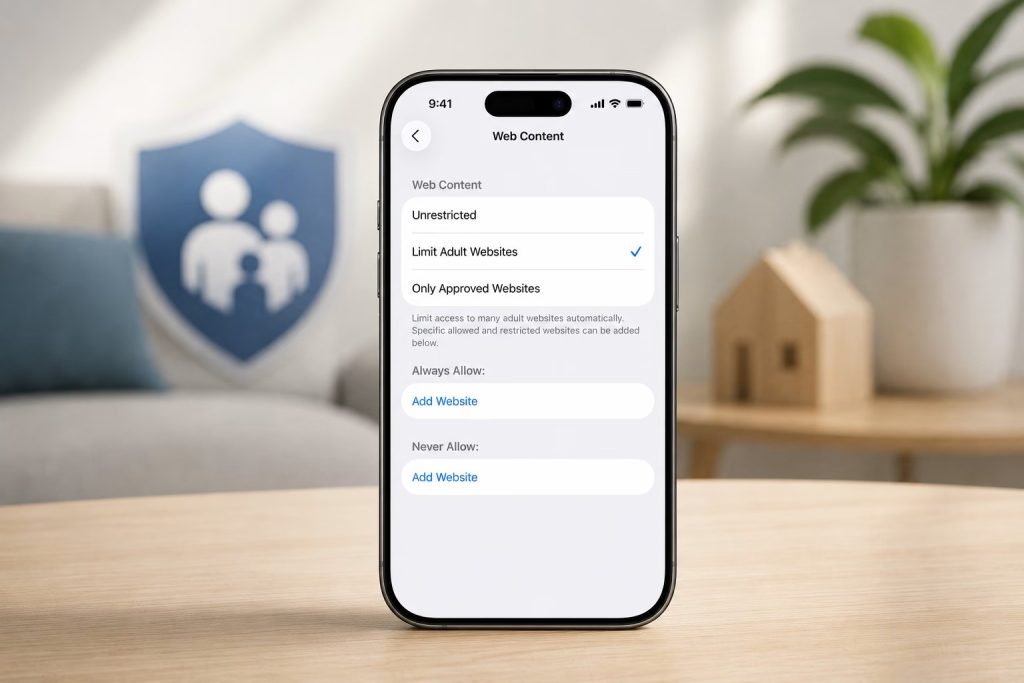
- Content & Privacy Restrictions. Block adult web content, set age ratings for apps and media, and lock down whether they can install or delete apps at all.
- Ask to Buy. Every purchase or download pings your phone for approval. This single setting has saved me from a lot of surprise in-app charges.
Apple previewed a round of upgrades in June 2026 that land with the fall software updates, and they are the right kind of boring-but-useful. There is a simpler setup flow that starts kids with a recommended set of essential apps, a new Ask to Browse approval for websites, Time Allowances for more flexible limits, and a redesigned Screen Time that shows you a kid’s usage at a glance and lets you tighten or extend access in the moment, with a tap, instead of digging through menus. The App Store also added more granular age ratings, splitting the old buckets into 13+, 16+, and 18+. If your household leans Apple, my HomeKit buyer’s guide walks through the rest of that ecosystem.
Android: Google Family Link
On Android, the equivalent is Google Family Link, and it is free. You install it, link it to your child’s Google account, and you get screen time limits, downtime schedules that lock the device at night, app approval before anything installs from the Play Store, content rating filters, YouTube supervision, and location on a map as long as the kid is carrying the phone.
The standout feature is School Time, which limits the device to a short list of allowed apps during class hours so the phone is a calculator and a hall pass, not a casino. Google is also baking parental controls directly into the operating system: with Android 17, screen time, app limits, and downtime are managed right in device Settings on all phones, not just through a separate app. Google put real money behind this too, expanding its digital wellbeing fund to $50 million in 2026.
The other screens in the house
Phones get the attention, but kids are rarely on just one device. Cover the rest while you are at it:
- Windows PCs and Xbox: Microsoft Family Safety handles screen time, content filters, and spending across both, in one place.
- PlayStation and Nintendo Switch: both have their own family apps with play-time limits, communication controls, and spending caps. The Switch app is genuinely good and runs from your phone.
- Amazon Fire tablets: Amazon Kids+ is built for this, with a parent dashboard, time limits, and a curated, walled-garden content library.
The point is not to set up all of these in one sitting. It is to remember that a locked-down phone next to a wide-open game console is not actually locked down.
Layer 2: Lock Down the Network
Here is where it gets powerful, and where Home Sync’d lives. Device controls protect one device. Network controls protect every device that touches your Wi-Fi at once, including the smart TV, the guest’s tablet, and the random handheld you forgot existed. There are two ways in, easy and serious.
The easy win: family DNS
This is the highest-leverage 10 minutes in the whole guide, and most of it is free. Every time a device loads a website, it first asks a DNS server to turn the name into an address. A filtering DNS checks that name against a blocklist first, and if the site is in the adult or malware category, it simply never loads. No app on the kid’s phone, nothing for them to uninstall.
Your options, from free to nerdy:
- Free: Cloudflare’s 1.1.1.3 (“for Families”) and OpenDNS FamilyShield both block adult content with zero account and zero cost. Point your router at them and you are done.
- NextDNS (about $20 a year) is the enthusiast pick. It is essentially a firewall for the modern internet, with granular per-category filtering, ad and tracker blocking, and detailed logs. It runs across 132 locations, so it is fast.
- CleanBrowsing (Basic around $75 a year for up to 25 devices) is the simpler, set-it-and-forget-it option, with 21+ content categories you flip on with a click and enforced SafeSearch.
Setup is the same for all of them and takes about 5 to 10 minutes: log into your router (usually 192.168.1.1 in a browser), find the DNS settings, replace the existing numbers with your chosen family DNS, save, and reboot. If your Wi-Fi is flaky to begin with or you cannot find the setting, my Wi-Fi troubleshooting guide will get you unstuck.
One honest limitation: DNS filtering only covers devices on your network. The second a phone hops onto cellular data or a friend’s Wi-Fi, those rules are gone. That is exactly why you do the device layer too, and it is worth understanding which gear leans on your network and which does not, something I get into in smart home devices that work without Wi-Fi.
The serious upgrade: a router built for this
If you want the network layer to be genuinely strong instead of just a filter, the move is a router designed around family controls rather than treating them as a buried afterthought. The standout is the Gryphon AX. It is built parental-controls-first: you assign each device a profile (Toddler, Elementary, Middle School, High School, Adult, or Unfiltered), and the rules follow the kid. Its web filter blacklists over a million sites and crowd-ranks the borderline ones, it enforces safe search and YouTube restrictions, and the feature I love most is that a new device cannot join the Wi-Fi until a parent approves it. The advanced filtering runs on a Premium plan at about $7.50 a month, but the hardware-level control is the real product.
Check it on Amazon: Gryphon AX Mesh WiFi 6 Parental Control Router. If the AX is more router than you need, the smaller Gryphon Guardian runs the same software for less. And if you are happy with the mesh you own, Eero systems include solid, friendly profile-based controls with bedtime schedules and one-tap pause through an Eero Plus subscription, just with less depth than Gryphon.
The trick the pros use: a separate network for the kids
Whatever router you land on, put your kids’ devices (and your smart home gadgets) on a separate guest or IoT network from the laptops and phones that hold your actual life. It keeps things tidy, it makes filtering rules easier to reason about, and it is a basic security win. I cover the same separation in the network section of the smart home from scratch guide, because it pays off well beyond parental controls.
Layer 3: Monitoring, When the Built-Ins Are Not Enough
The first two layers handle access, what a kid can reach and for how long. They do not tell you that a group chat turned cruel, or that a kid searched something that should worry you. That is what the monitoring apps are for, and this is where you have to make a real decision about how much you want to watch versus control.
- Bark (about $14 a month for unlimited kids) is the alert specialist. It monitors 30+ social and messaging apps and pings you only when it detects something that matters: bullying, self-harm language, explicit content, predatory contact. It is less about logging every move and more about catching the dangerous moments. It does not monitor phone calls or in-game chat, so it is not total coverage.
- Qustodio (around $100 a year for five devices, with a genuinely usable free tier) is the classic all-rounder: app and web filters, daily and per-app time limits, and good location tracking. It runs on iOS, Android, Windows, Mac, and Fire, which makes it the pick for mixed-device households.
- Aura (about $37 a month) is the everything-bundle. It folds parental controls together with cyberbullying and predator alerts, in-game monitoring, plus family-wide identity theft protection and data removal. It costs the most because it is really a whole-family digital safety service, not just a kid app.
My honest take: start without these. Get the device and network layers solid, and add a monitoring app only if you have a specific reason, a particular kid or a particular worry. The heavier the monitoring, the more it can read as surveillance, and a kid who feels spied on learns to route around you instead of coming to you. Match the tool to the actual risk, not to your anxiety.
While You Are At It: The Physical Layer
Parental controls usually means the internet, but the same instinct, keeping an eye on the kids, runs into the physical house too, especially once they are old enough to be home alone. A video doorbell that tells you they got home safe, or a home security setup with no monthly fee that lets you check in without a subscription, covers the part of “where are my kids and are they okay” that no screen-time app touches. It is the same goal, pointed at the front door instead of the phone.
The Layer No App Covers
Here is the part the listicles skip. I am not trying to turn our house into Fort Knox. We give our girls some latitude on purpose, because the only way they learn to handle the internet is to actually spend time on it, with a few guardrails, while they are still under our roof. The settings are not a cage. They are there to keep the real swamp, the worst of social media and everything that rides along with it, at arm’s length while they figure out the rest. The controls buy time. That is all they do, and it is plenty.
So talk to them, and hold a few lines you actually mean. For us the big ones are device time and no phones in the bedroom at night. They charge in the kitchen, not on the nightstand, which is the same rule my parents had with the house phone: no calls after 9pm. The tools change, the boundary does not. Past that, tell them what you turned on and why, in plain language, and let them bring you anything they stumble into online with no trouble for having seen it. The tech is a backstop. You are still the parent, and that part does not come in a settings menu.
I will be straight: this is a harder job than my parents had. Their worst case was a bad influence down the block. Ours is a feed built to never stop, and we are raising two girls in the middle of it. I do not have it perfectly dialed in, and I doubt anyone does. The layers are just how we keep the house standing while we all figure it out, slower and messier than any app will admit.
A Real Setup That Takes One Afternoon
Here is the streamlined version, close to the stack I run for our own two girls, 15 and 12. Start to finish, this is an afternoon, not a project. The older one gets a lighter touch on purpose; the younger one gets more structure.
- Minutes 0 to 30: Create a Child Account for the 15-year-old on her iPhone through Family Sharing, set Downtime so the phone parks at 9pm, add App Limits on social and games, and turn on Ask to Buy and Communication Safety. Heavier on the boundaries than the leash here, since she has earned a little room.
- Minutes 30 to 50: Install Google Family Link on the 12-year-old’s Android phone or tablet, set a daily limit, turn on School Time, and require approval for new app installs.
- Minutes 50 to 60: Log into your router and switch your DNS to Cloudflare 1.1.1.3 or NextDNS. Every screen in the house now has a filter, including the ones you forgot about.
- Optional, +20 minutes: If you want network-level profiles per kid, set up a Gryphon AX or turn on your router’s built-in controls. If you have a specific worry, add Bark and walk away.
- The part with no timer: Sit the kids down, tell them what you set up and why, and write the one-page family agreement together.
That is a layered, resilient setup, built mostly from free tools, in less time than it takes to assemble a piece of flat-pack furniture. And unlike the furniture, it actually holds up.
Frequently Asked Questions
What is the best free way to lock down my kid’s devices?
Start with the built-in tools, which cost nothing and do the most: a Child Account with Screen Time on Apple devices, or Google Family Link on Android. Then point your router at a free family DNS like Cloudflare’s 1.1.1.3 or OpenDNS FamilyShield to filter every device on your Wi-Fi at once. That combination covers the large majority of families without spending a dollar.
Do I need a paid parental control app?
Usually not to start. The free device and network controls handle access and time limits well. Paid monitoring apps like Bark, Qustodio, or Aura add value when you need alerts about what is happening inside chats and social apps, or when you have a specific concern about a specific child. Add one only when you have a reason, not by default.
Will a filter on my router stop everything?
No. Router and DNS filtering only applies while a device is on your home network. The moment a phone switches to cellular data or connects to another Wi-Fi, those rules no longer apply. That is why you set up controls on the device itself as well, so the protection travels with the kid.
What age should a kid get their first phone?
There is no single right answer, but the data is telling: the average child gets a smartphone around 11.6 years old, while parents most often say the ideal age is closer to 13. A common middle path is to start with a locked-down device or a smartwatch for calls and location, then move to a full smartphone with controls already in place once you trust the routine.
Can my kids just turn the controls off?
Properly set up, no. Controls tied to a Child Account or Family Link are managed from your device and protected by your passcode, and changes require your approval. The bigger risk is workarounds, like a second account or a friend’s device, which is exactly why the conversation and the family agreement matter as much as the settings.